
N8n Tutorial: Built an AI Workflow Agent to summarize insights on labeled emails on payment notifications

Dear n8n enthusiasts,
Today, I want to share how to build an AI workflow to summarize newsletter emails.
Today, I will share with you how to build an AI agent workflow to summarize payment emails.
I get about about 15 payment notifications per week and this workflow extracts the top 3 takeaways from each one and sends me a weekly digest every Sunday.
My goal is to save you time and give you hands-on practice for n8n, one of the most popular AI workflow platforms out there. Here's what we'll build together:
Tag newsletters in Gmail and connect n8n
Set up a weekly trigger to fetch newsletters
Aggregate and clean all newsletter content
Create an AI prompt to generate your digest
Format and email your weekly summary
Here's what we'll build from scratch:
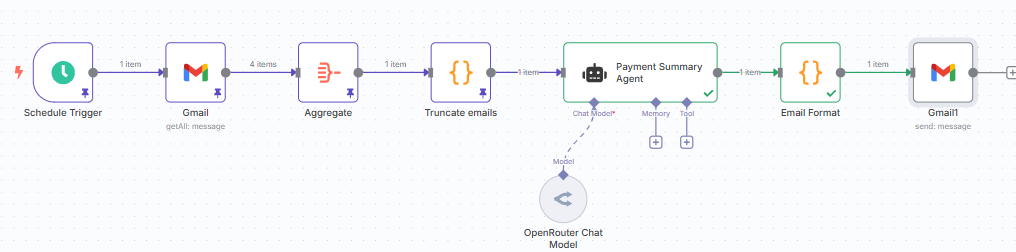
Don't worry if this looks complicated. We'll build it step by step.
Step 1: Tag newsletters in Gmail and connect n8n
First, we need clean data to work with.
Open Gmail and create a label called Payments. Then apply this label to your emails manually or set up Gmail filters to tag specific senders:
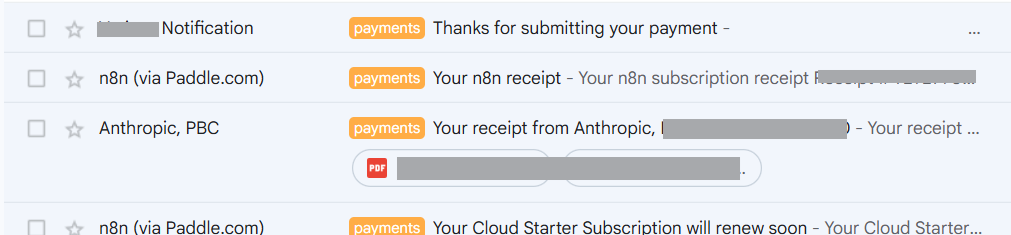
This step matters. The cleaner your data, the easier to build on n8n it will be.
Next, connect your n8n account to Gmail:
Connect Gmail to n8n. Go to n8n and log in or sign up for the 14-day free trial. From the n8n Overview page, click the dropdown "Create Workflow button" and select Create Credential.
Gmail Sign In: Type "Gmail" in the search bar, click Continue, then Sign In with Google. Hit Save.
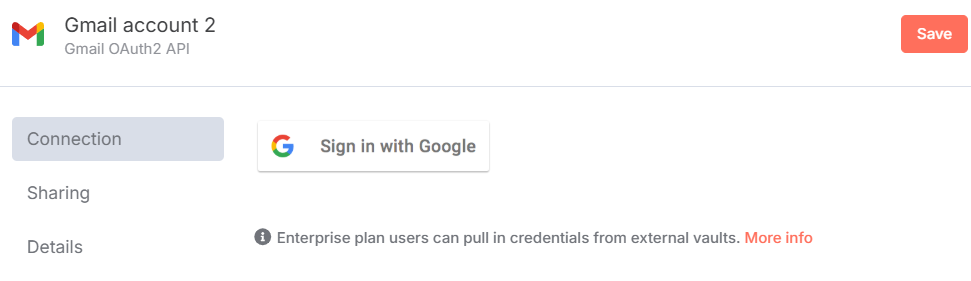
Optional: Get your OpenAI API key. You can go to platform.openai.com to get your own API key.
Step 2: Set up a weekly trigger to fetch newsletters
This is where you will start using n8n to build your AI workflow.
Go to the n8n Overview page and click "Create Workflow." Click Add first step and add the trigger On a schedule. Configure it like this:
Trigger interval: Weeks
Weeks between triggers: 1
Trigger on Weekdays: Sunday
Hour: 8 (for 8 AM)
This tells your workflow to run every Sunday morning at 8 AM. Next, on your workflow page, add a Gmail node after the trigger by clicking the "+" button and searching for "Gmail." Select "Get many messages" and configure it like this:
Credentials: Select the Gmail account you added earlier
Resource: Message
Operation: Get Many
Return all: Toggled on
Simplify: Toggled off
Filters: Add a Search filter and type in: label:payments AND newer_than:7d
This grabs all emails with the payments label from the past 7 days.
Hit "Execute workflow" and your workflow now looks like this:
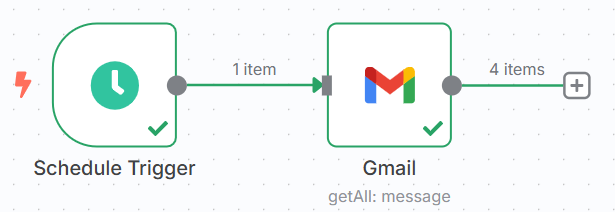
Double-click the "Get many messages" node to see if the right newsletter emails are coming through. You'll see the output on your right.
Step 3: Aggregate and clean all newsletter content
Add an "Aggregate" node after the Gmail node to combine all your payment content into one chunk for AI to process.
Configure it as follows:
Aggregate: All Item Data (Into a Single List)
Put Output in Field: data
Include: All fields
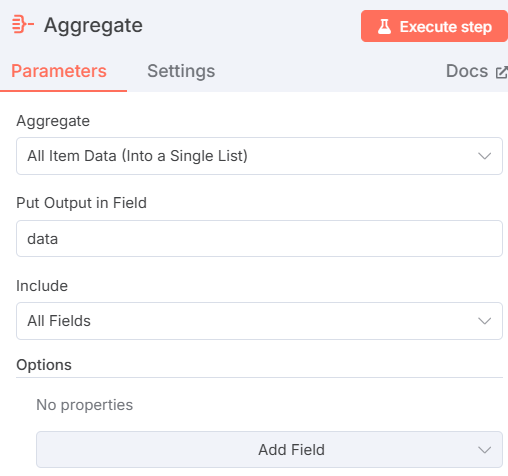
Hit "Execute step" to test the node.
Sometimes - the Aggregate node can produce too much text from all emails you'll pull too many emails combined for OpenAI to process.
Add a "Code" node after your Aggregate node and name it "Truncate emails." In the Javascript field, paste this code to truncate the emails to 100K characters:
return [ { json: { truncated: JSON.stringify(items, null, 2).slice(0, 100000) } }];Hit "Execute step" to make sure the output works. Your workflow should now have four connected nodes:
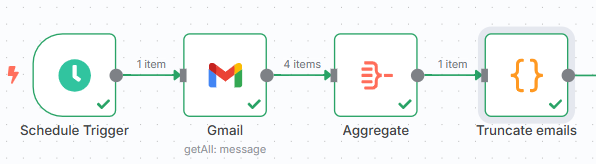
Step 4: Create an AI prompt to generate your digest
This is where the magic happens. Click "+" after the Code node and search for "AI Agent." Configure it as follows:
Source for Prompt: Define below
Prompt (User Message): Drag and drop the input field "truncated" on the left into this field.
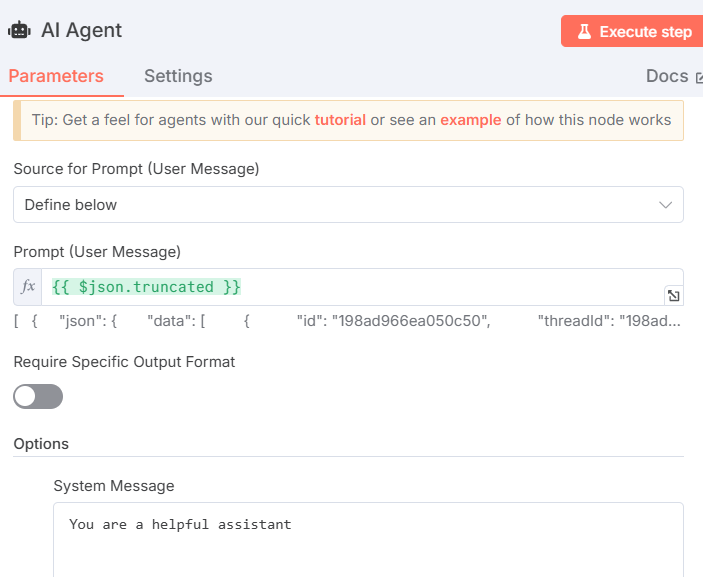
Now click "Add Option" and select "System Message." This is where you write your AI prompt. I included a clear prompt to get a clean digest with top takeaways for each newsletter:
<example>Hi, here's your payments digest for this week:## Payment Summary - Week of [Date]- [Vendor] - $[Amount] - [Date]- [Continue for each payment]## Weekly Stats:- Total Spent: $[Calculate sum]- Payment Count: [Number]- Largest Payment: [Vendor and amount]Thanks, Your AI agent 🤖</example>Next, go back to the Workflows page and click the “+” button under Chat Model.
Search for "OpenAI Chat Model" or "OpenRouter Chat Model" (note that this is still part of the AI agent node):
Configure it as follows:
Credentials to connect with: use your API key - OpenRouter account
Model from list: gpt-4.o-mini
“Execute step” on the AI agent node to make sure it works.
Step 5: Format and email your weekly summary
You're almost done. Just two more nodes to go.
Add a "Code" node after the AI agent node and rename it "Email Format" .
Without the "Email Format" code node, your email would look messy with raw markdown symbols instead of formatted text. For example, you'd see **AWS** instead of AWS in bold.
Paste this Javascript code to generate a nice-looking email:
const markdown = $json["output"] || "";const html = markdown .replace(/\*\*(.*?)\*\*/g, '<strong>$1</strong>') // bold .replace(/\*(.*?)\*/g, '<em>$1</em>') // italic .replace(/ \n/g, '<br>') // soft line breaks .replace(/\n\n/g, '<br><br>') // paragraph breaks .replace(/\n/g, '<br>'); // all other breaksreturn [{ json: { html } }];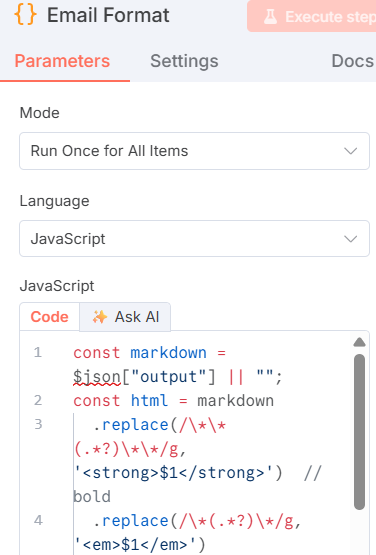
Finally, add a Gmail node after your code node. Configure it:
Credentials to connect with: Gmail
Resource: Message
Operation: Send
To: Type your email address here
Subject: Weekly newsletter digest
Message: Drag and drop the html from the input field
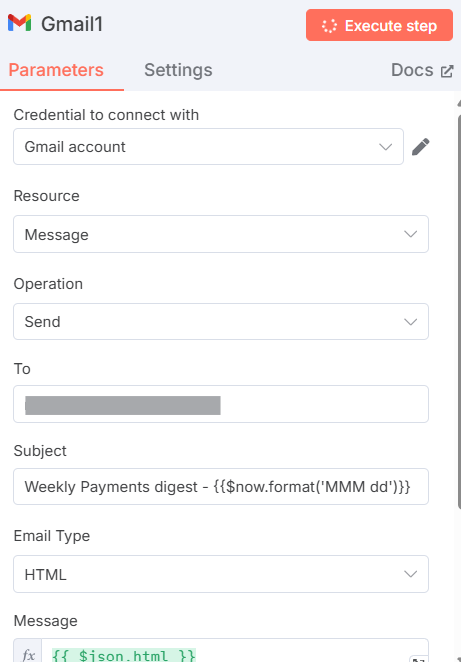
“Execute step” and if everything works, you should receive an email with your digest for the past 7 days.
Congratulations! You just built a complex AI workflow from scratch!